
How to export group data?
You can export group data for further use, for example in reporting.
What data does the export provide:
- Number of users in each group;
- Settings enabled for each group;
- Information about the functional managers assigned to the user group;
- The number of materials available to a group of users, depending on the types:
"All" - when enabled, information about group access to materials specified in the list below will be generated:
- "Events"
- "Prof. Tests"
- "Video " from the video channel ,
- Certification tests ,
- "Polls ",
- HTML Catalogs
- Knowledge Base "Documents" ,
- "Awards"
- "Messages"
- "Present",
- KPI,
- "Education".
To perform an unloading you need to:
- Open the " Users " section and go to the " Assignment Group" tab ;
- Click " Options " and select " Export " ;
- Use the checkboxes to indicate what information you want to see in the export and click " Export ."
Uncheck the fields whose information you don't want to export, or leave everything selected. The All checkbox unchecks/selects all fields in this category.
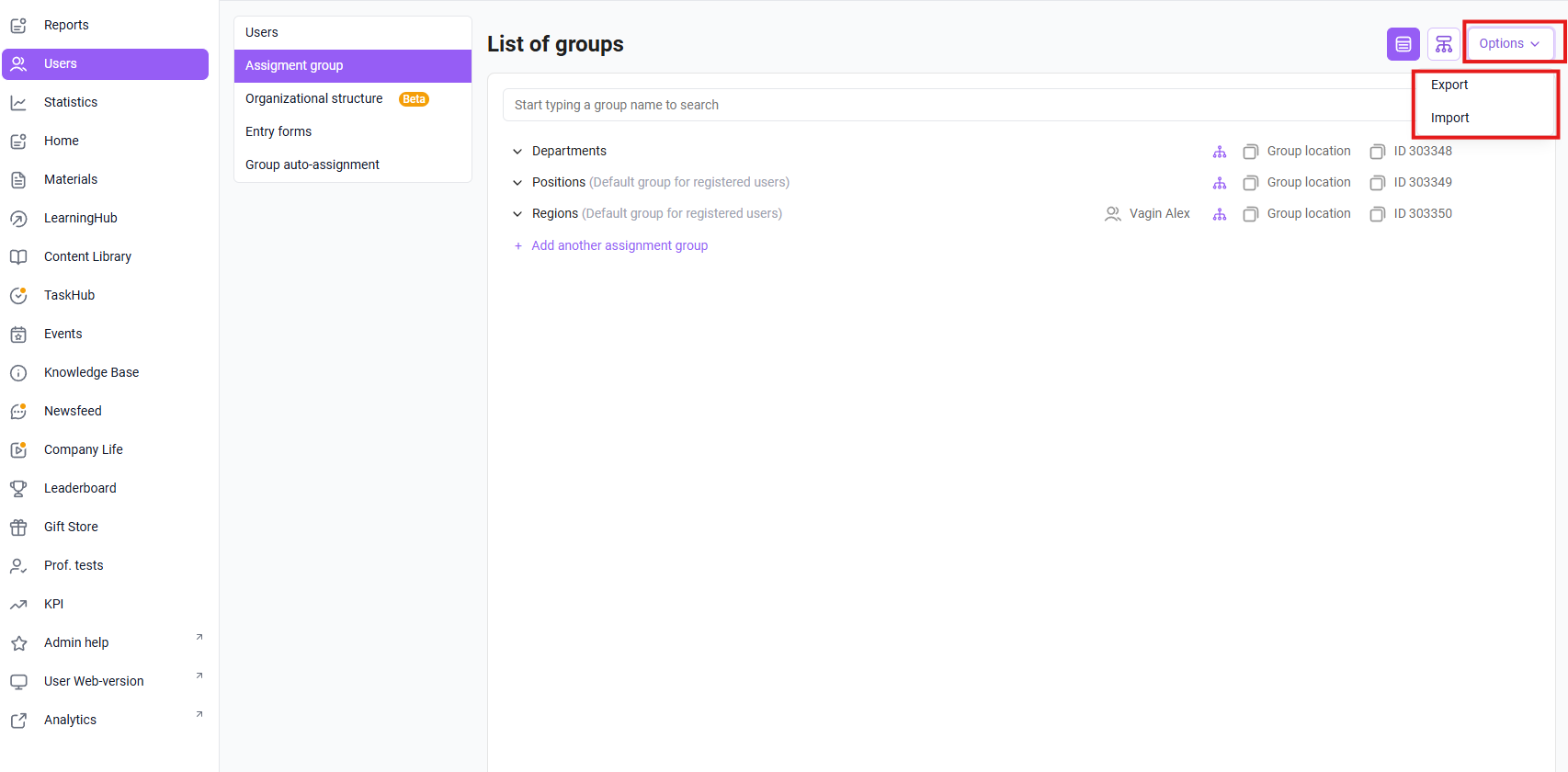
Click the Export button in the Options menu above the list of groups.
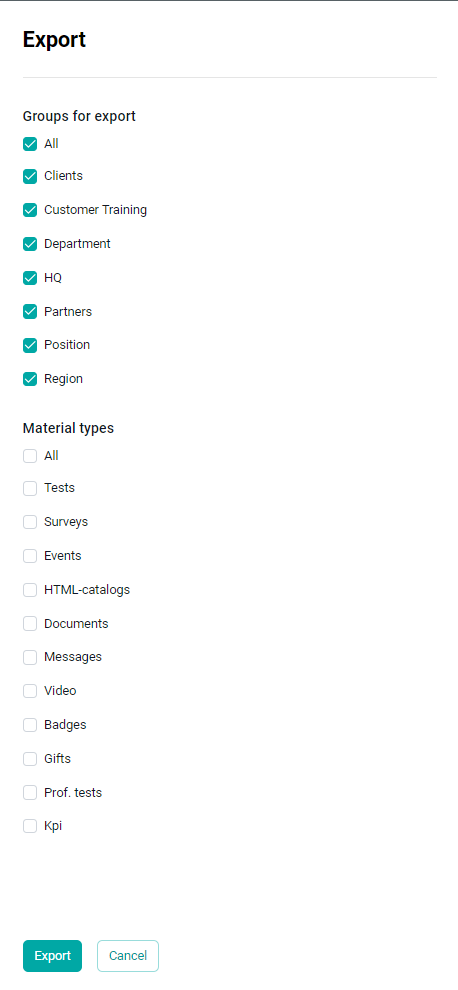
You can export all the available data, or select specific ones.
Uncheck the fields for which you do not want to export information, or leave everything selected. The checkbox removes/selects all fields of this category.
Click Export. Data export will start in the background. You can view the running process in the all processes window.
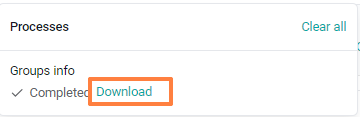
When the process is complete, click Download. The export file will be downloaded to your computer.
Errors.
The system will not start the export and will display a warning if no fields are selected.