
Staffing units are needed to set additional requirements for employees who hold similar positions but have specific work activities (for example, increased requirements for working in particularly difficult conditions, or for grading areas of responsibility within a single position).
The company has a designated job title of "Occupational Safety Engineer ." However, these specialists perform different tasks in different departments:
- one engineer works in a production facility with hazardous working conditions, where additional knowledge and skills in industrial safety are required;
- another engineer performs tasks in an office environment where such increased demands are not imposed;
- The third is responsible for several branches at once, which implies an expanded area of responsibility and team management skills.
In all cases, the position is the same, but individual requirements can be set for each position to more accurately assess employees' suitability for their work conditions and responsibilities.
When you open the Staffing Units section, all staffing units created in the company are displayed, both in active and archived status.
If necessary, you can filter and sort their display, and also use bulk actions to transfer staff units to archived status.
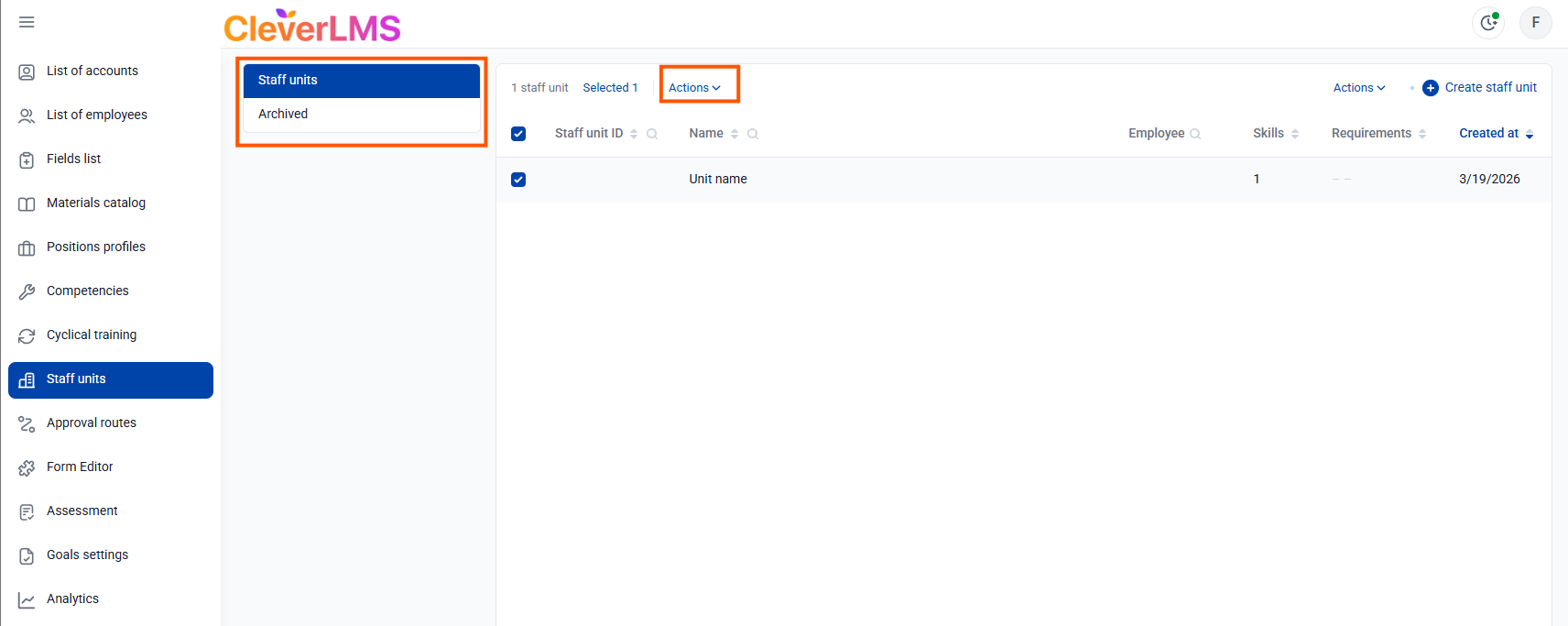
Creation of a Staff Unit
The administrator can manage a list of all staff positions available in the system. A table with staff positions is needed to manage the directory, while the original directory is stored in external systems and can be transferred to the IPR manually or via import.
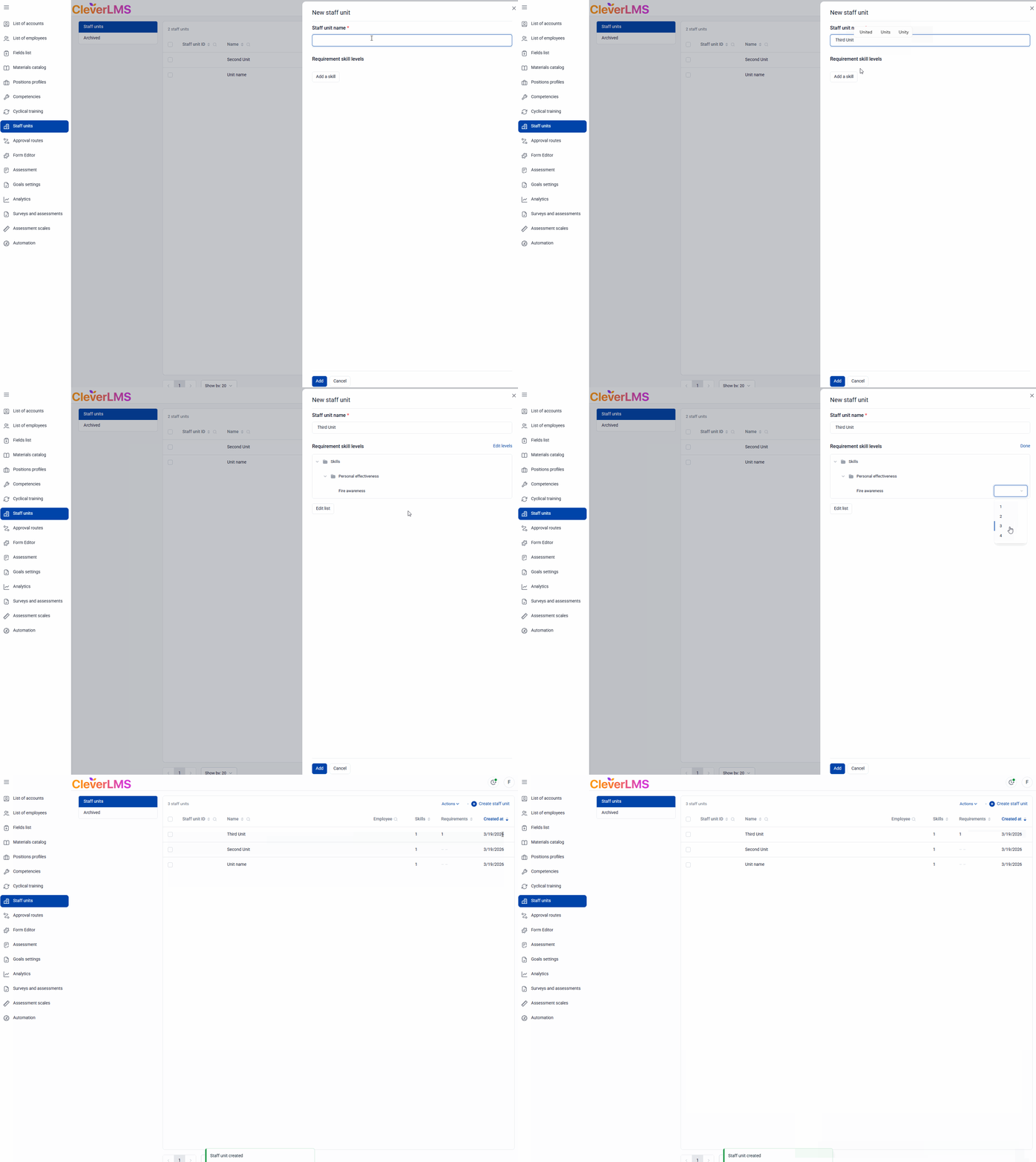
To add a staff unit manually :
- Click on " + Add a staff unit ";
- In the window that opens, specify the Name of the staffing unit;
- Click " Add Skill , " select the desired skills from the skill tree, and confirm with " Select . " For convenience, you can search and reset selected skills. After adding, you can edit the list using " Edit List . "
- Click " Edit Levels " to set the desired value for each of the selected skills. Once complete, click " Done ."
- Complete the creation of the Staff Unit by clicking the " Add " button.
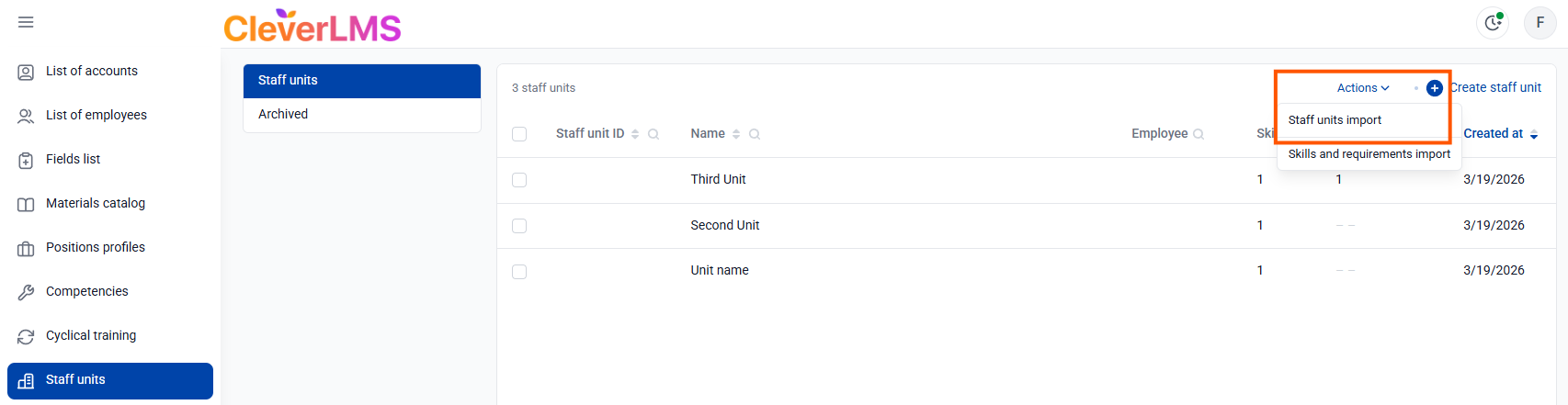
To add multiple staff positions using Import:
1. Click " Actions " in the upper right corner of the screen and select " Import staff units ";
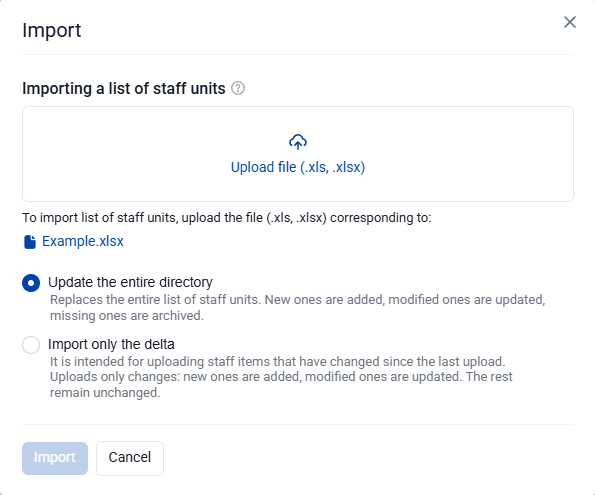
2. In the window that opens, download the Example.xlsx file and fill it with data on the staffing units being added.

- External ID - specifies the position's ID in the external system. This field is used if data for the position will be synchronized with the external system.
- Name - must be unique;
- Employee - Enter the employee's email address. If there are multiple employees, separate the email addresses with commas. If the same email address is specified for multiple employees, all employees with that email address will contact the position.
3. Upload the completed file to the platform by selecting one of the options :
Update the entire directory - this replaces the entire list of staff positions with the information from the file. New positions are added, modified positions are updated, and positions missing from the download are archived;
Import Delta Only - Used to import staff positions that have changed since the last import. Only changes are imported: new ones are added, and modified ones are updated. The rest are left unchanged.
Importing skills and requirements
This feature allows you to add a large number of skills and requirements for a staff position into the system at once.
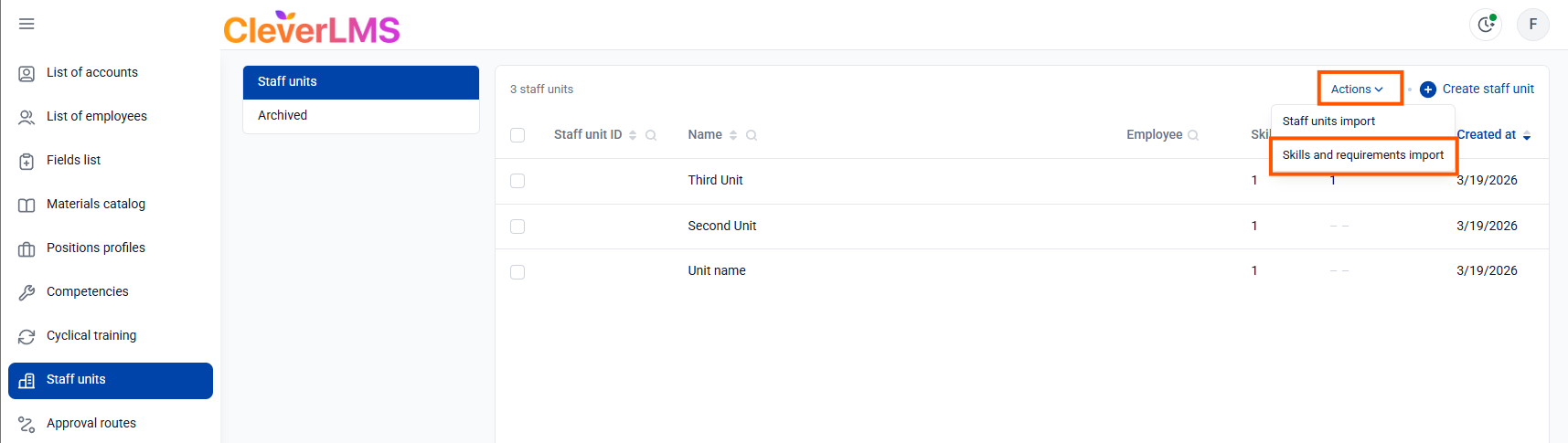
To do this you need:
- Click on " Actions " in the upper right corner of the screen and select " Import skills and requirements ";
- In the window that opens, download the Example.xlsx file and fill it with data on skills and requirements for them within the framework of staffing units;
- Upload the completed file to the system.
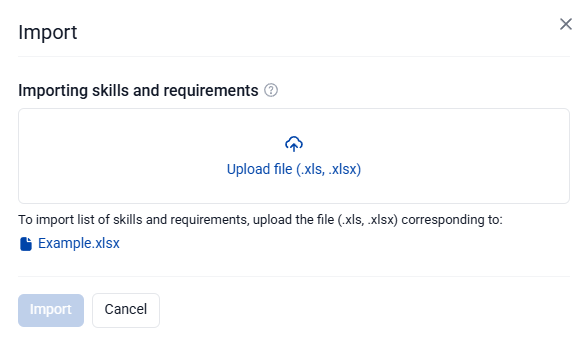
Filling out the file to import skills and requirements for a staffing position:

- External ID - specifies the staff position identifier in the external system. This field is used if the staff position data will be synchronized with it;
- Name - specify the name of the staffing unit that has already been created in the system;
- Skill - Enter the name of the skill added in the " Skill Tree " section for which you want to enter requirements;
- Required level of proficiency ;
- Master value is the proficiency level value for a skill on a 100-point rating scale (used to compare user and reference values).
Once the import process is complete, all the data you have uploaded will be displayed in the section.