
Cloning partitions
The system now offers the ability to clone the Training and Explorer sections . This functionality allows you to create multiple independent sections of the same type with individual names, settings, and purposes.
Cloning helps flexibly structure the platform for different tasks and audiences, categorize content by use case, and maintain convenient navigation and a unified approach to content management.
Cloning the Training section
You can create multiple Training sections in the system and assign each its own name and settings. This is especially useful, as the Training section is one of the most widely used functional blocks of the platform.
Cloning the Training section allows you to logically separate courses and programs by topic and use case, without mixing different types of training in one section.
Features of additional sections "Training":
- Setting different default testing parameters for each section;
- use of different certificates (including those with individual designs);
- setting unique names and icons for sections;
- Users see only those sections in which content is available to them - if nothing is available in a section to the user, then the section itself is not displayed to them.
Example of use:
The company needs to separate mandatory training and informational materials to make it easier for users to navigate and for the administrator to set up different scenarios.
There may be multiple Training sections . The Materials section (available only to administrators) is always the same and is used as a single database of materials for posting in training programs.
Solution: Create multiple Training sections with different settings.
-
The "Training" section
is used for educational programs: skills training, mandatory courses, and employee onboarding.
This section allows you to configure standard tests, standard completion requirements, and a unified certificate. -
The "Stay Informed" section
is used for informational programs: updates to regulations, internal rules, and news.
This section receives a separate name and icon, different testing settings, and, if necessary, a different certificate design.
As a result, users immediately understand the purpose of each section, and the administrator can flexibly manage training and information delivery without mixing different formats in a single section.
What the administrator sees | What the user sees |
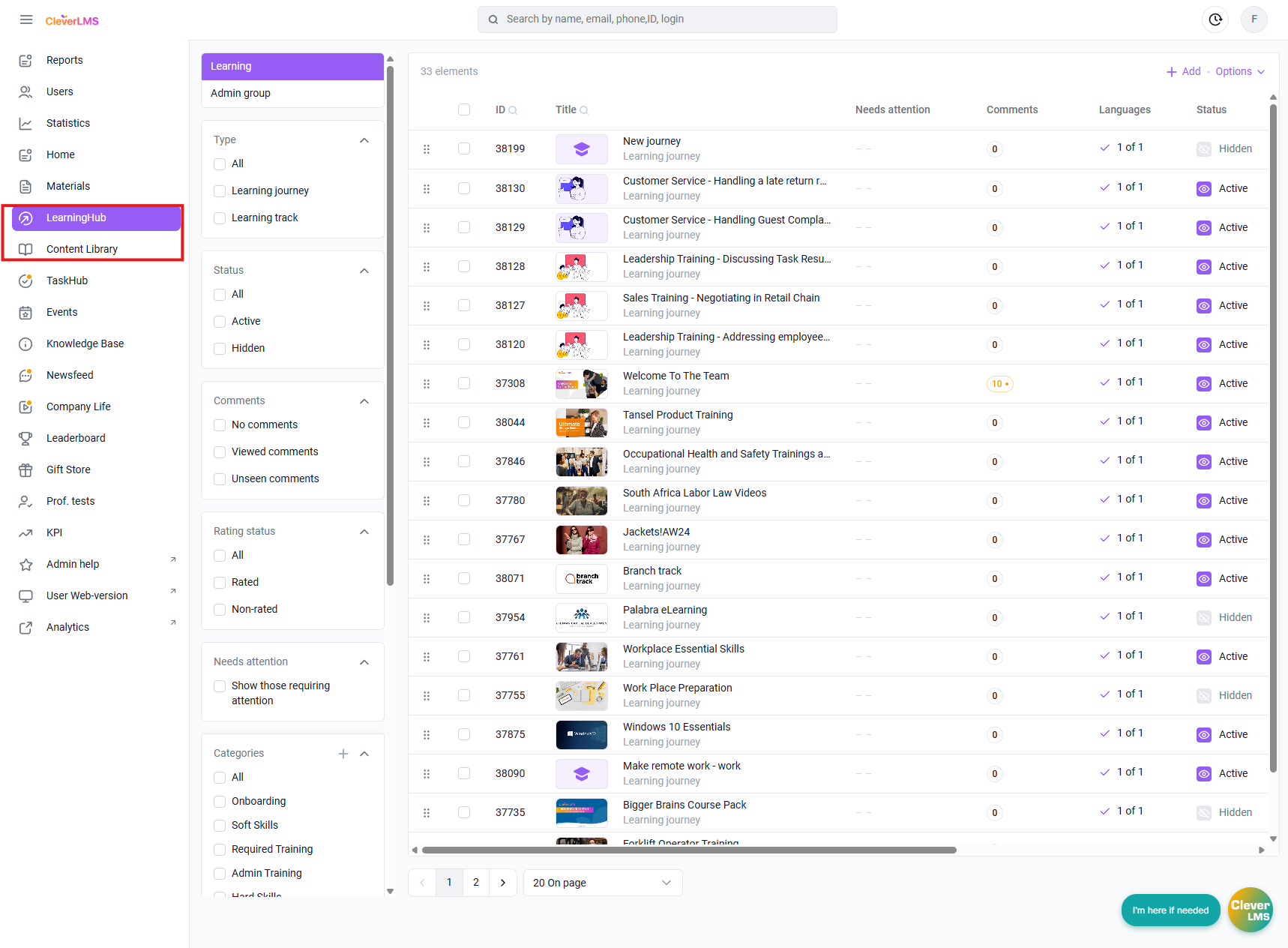 | 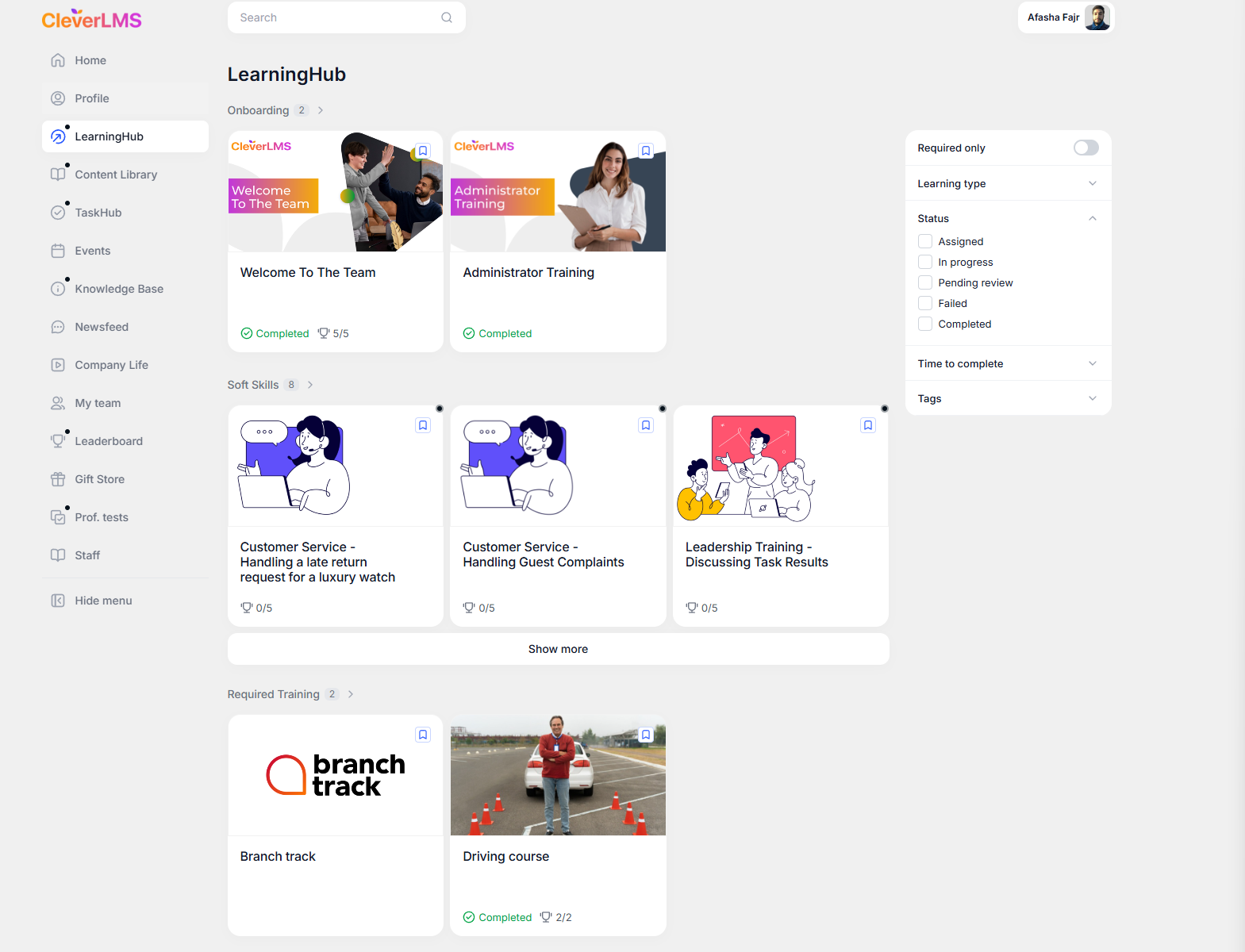 |
Cloning a File Explorer partition
The Explorer section can be used not only as a universal repository of materials, but also as a tool for working with different audiences.
By cloning a section, a company can create multiple independent Explorers , each serving its own purpose and targeting a specific use case—while preserving the benefits of deep nesting, easy navigation, and visual design within each section.
Example of use:
The company works not only with employees but also with partners: dealers, franchisees, and contractors. Both audiences value convenient access to up-to-date materials, but the content, structure, and objectives differ.
Solution: The company creates separate Explorer sections for each audience.
-
The "For Employees" Explorer
contains training materials, instructions, regulations, and internal documents.
The materials are structured by area and topic using multi-level folders, making it easy to navigate even large volumes of information. -
The "For Partners" section
is a separate section with materials for external audiences: product presentations, marketing materials, user manuals, and updates.
Access settings ensure that Partners will only see this section and will have access to content relevant to them.
As a result, employees and partners quickly find the materials they need without being distracted by unnecessary content, and the administrator receives a convenient and scalable tool for working with different audiences within a single platform.
Adding links to the section menu
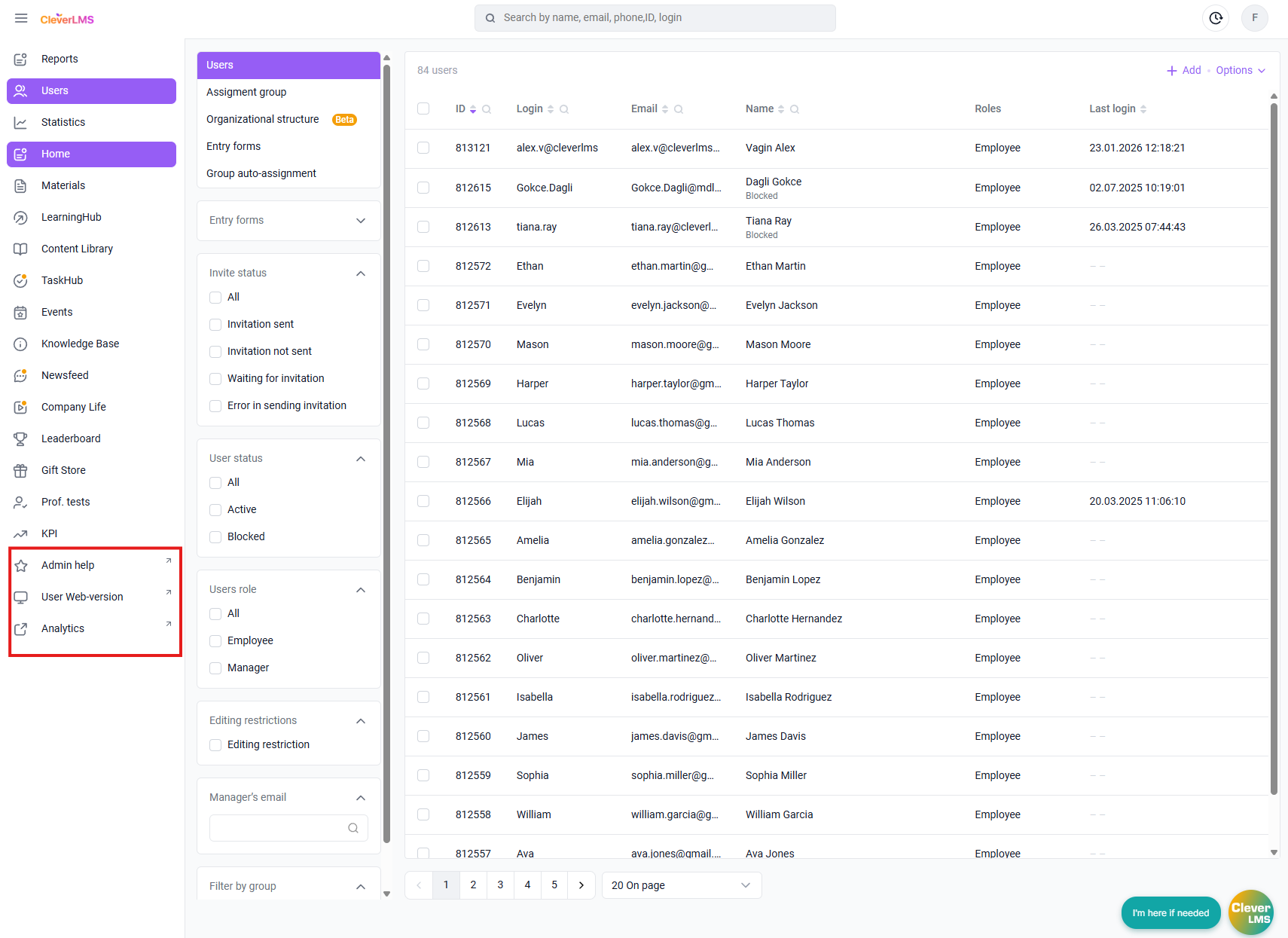
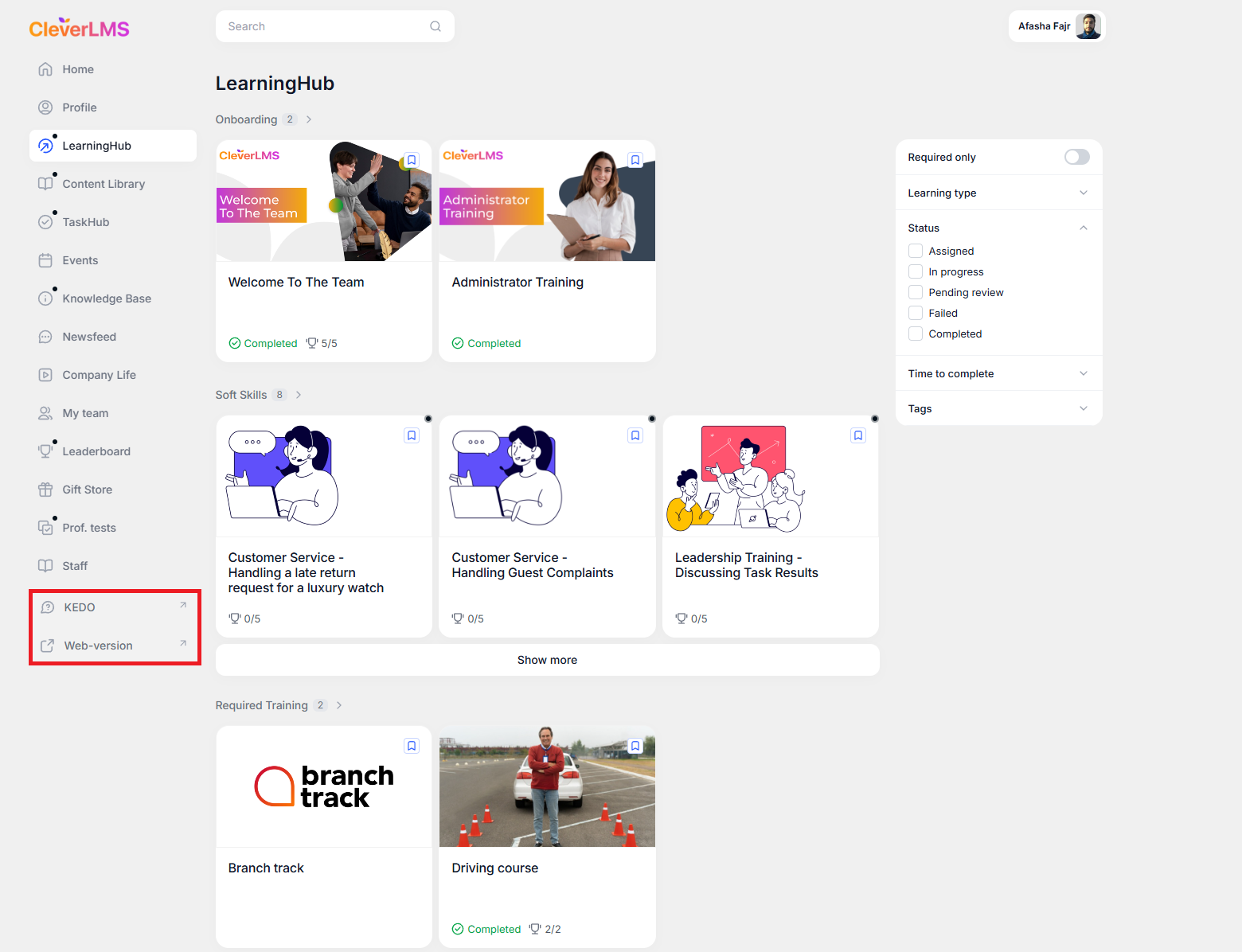
The platform allows you to add links to external resources directly to the sidebar menu. You can also configure which links will be visible only to users in the app , and which will only be visible to administrators in the admin panel . This allows for quick access to important tools, documents, and resources without duplicating content within the system.
The added link section will differ from the standard system sections by the presence of an arrow in the upper right corner of the button.
Link in the side menu for administrators
This feature allows you to add a link as a section that will be visible only in the admin panel .
Examples of use for redirecting administrators:
- to the web version of the application for quick access - convenient when using the Login as user function ;
- on internal company tools or systems required by administrators;
- to reference materials and documentation.
This approach helps administrators have all the necessary resources at their fingertips , speeds up workflows, and makes navigation through external systems more convenient.
Link in the side menu for users
With this feature you can place a link as a section that will only be displayed in the user interface .
Examples of use for quickly redirecting a user:
- to the company's internal chats;
- to external corporate systems;
- interactive surveys or feedback forms.
The link appears in the user's sidebar, providing quick and convenient access to important resources without the need to duplicate content.
Additional sections can be added to the side menu upon request to the Support Service.
In your request, the administrator must specify:
- Title of the additional section;
- The icon that should be displayed for it;
- Who should have access to the section : user or administrator.
Customization of section names and icons
Version 14.3.0 Now, not only the Training section, but also the Home , Surveys and Tests , Messages , Media Library , Documents , My Team , Achievements , Results , Gift Shop , Tasks , Events , Audits , Explorer sections and sections with a link can be given a different name and an icon can be selected for quick user orientation.
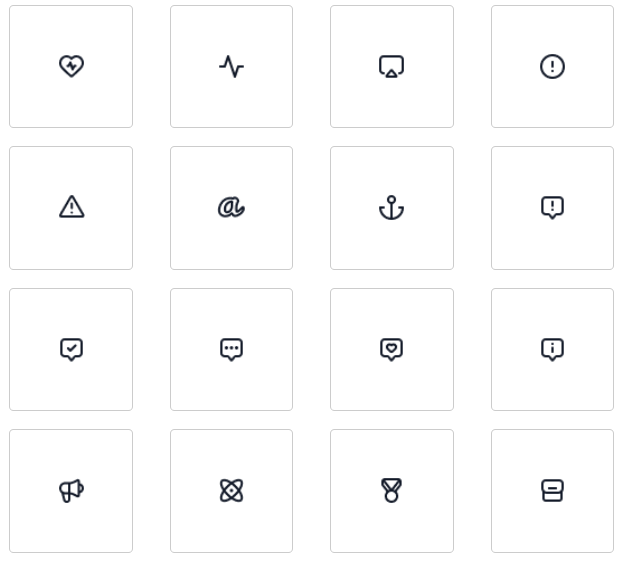
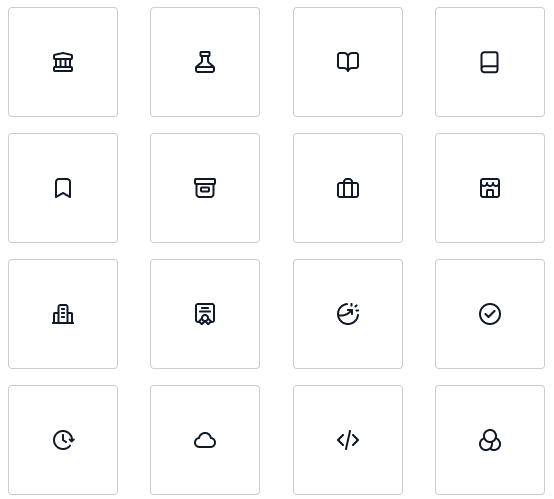
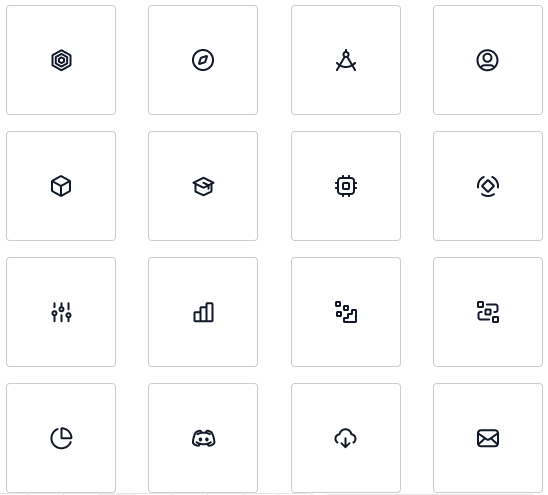
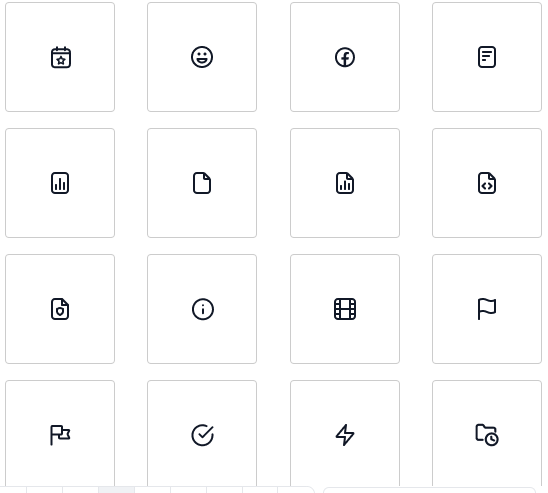
The system offers a variety of standard icons that can be customized to suit a section's theme or corporate style.
Examples of icons that can be selected are shown below:
 |  |
 |  |
 |  |
 |  |
  |  |
To add the sections described above, please contact your support manager or our Support Service specialists.